Email templates
Write the messages affiliates receive when they join, get referrals, or get paid.
Email delivery is not connected yet. Saving a template saves its wording.
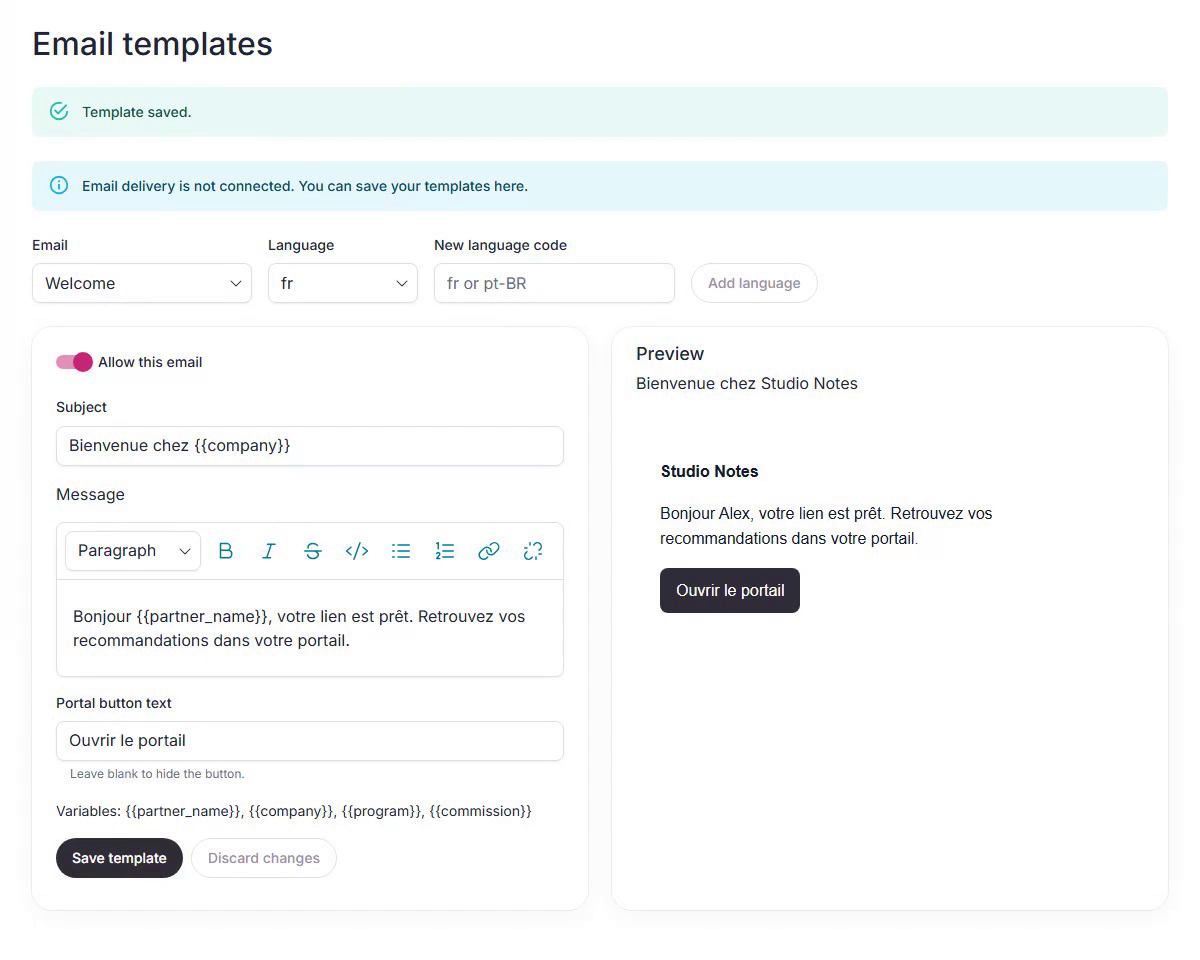
Edit a message
- Open Email templates in your dashboard.
- Choose an email, such as Welcome or Application approved.
- Edit the subject and message.
- Set the portal button text. Leave it blank to hide the button.
- Check the preview, then choose Save template.
Save or discard your changes before choosing another email.
Format a message
Select text and use the toolbar to make it bold or italic. You can also add headings and lists. To add a link, select its text, choose Add link, enter an HTTPS URL, and press Enter.
To format a variable, select the whole tag, including both pairs of braces. Check the preview to see the filled-in message. Choose Discard changes to return to the saved version.
Choose which emails to allow
For Welcome, First referral, New referral, and Payout sent, use Allow this email, then save. This choice applies to every language for that email. Invitation and application emails cannot be turned off here.
Affiliates can save their own referral and payout email choices under Profile in their portal. Imported Tolt choices are kept.
Add a language
Enter a language code in New language code, then choose Add language. For example, use fr for French or pt-BR for Brazilian Portuguese. Replace the wording with your translation and save it.
Each email can hold up to 20 languages. English is the default. The language picker lets you return to a saved translation.
Use variables
Variables fill in details for each email. Keep both pairs of braces.
| Variable | Detail |
|---|---|
{{partner_name}} | Affiliate name |
{{company}} | Company name |
{{program}} | Program name |
{{commission}} | Payment amount |
Fix a save error
If another team member changed the template, reload the page before saving again. Copy any wording you want to keep first.