Set commission rules
A flow runs when a referred customer signs up or pays. It can pay a commission or move the affiliate to another group.
Add a flow
- Open Commission flows and choose New flow.
- Enter a Flow name.
- Choose a Trigger and Action. For a commission, choose the reward type and amount. For a group move, choose the destination group.
- Pick an Affiliate group, or use All groups.
- Choose manual, immediate, or delayed approval.
- Add any conditions, then save.

Example
A 20% flow on a $100 paid total creates a $20 commission. The paid total includes tax. If two enabled 20% flows match, each creates $20. Use conditions or disable a flow if that is not what you want.
By default, all conditions in a flow must match. You can also choose any condition or add groups. Supported facts include payment amount, product, billing interval and type, affiliate, customer identifier, and affiliate country. Missing facts can block processing rather than guess.
Change a rule
Open the flow’s Actions menu (three dots), choose Edit, change the fields, and save. The same menu includes History, which shows saved versions, and Disable, which stops the rule from matching future processing. Existing commissions keep their original version.
Product caps are not complete workflows. Editing a flow does not recalculate old commissions. Delayed approval starts when the commission is created, even for an older manual payment.
Reward a signup
Choose New customer signup and Pay a commission. Enter a fixed amount, such as $5. The rule runs when your server verifies a new referred lead, or when staff add a lead or trial customer. A browser click alone does not earn it. Repeating the signup request does not pay twice.
The signup customer count includes the new lead. Payment count and total paid are zero at signup. Imported history does not trigger signup rewards. A customer first found through a paid coupon event earns payment rewards only.
Move an affiliate to another group
Choose Move affiliate to a group, then choose the destination. You can use a signup or payment trigger. The current event uses the affiliate’s original group for every matching rule. The new group applies to later events. If two matching flows choose different destination groups, the event stops until you fix the rules. No part of that event is saved.

Start with a template
Choose Start from a template in the flow editor. You can start with first payment only, every payment, monthly payments, yearly payments, fewer than five customers, or the first three months after signup. These templates start at 20% with immediate approval. The separate After the first year template starts at 10%. Check the group and amount before you save.

Use payment history
Customer payment count includes the current payment. Use equals 1 to reward only the first paid transaction. A free trial invoice with a zero total does not count as a payment.
Customer total paid after refunds adds the customer’s saved payments and the current payment, then takes off refunds. Enter money in the shown currency: 100 means $100 in USD. Affiliate customer count counts the affiliate’s customers at the payment date, including the current customer.
Stripe checks its own payment history before these rules run. If an older payment or refund is missing, the newer payment waits. It creates no commission and makes no group change. Record the missing history, then use Retry in Stripe events. Payments with unclear dates, credits, mixed currencies, or history above the review limit need review first.
Add manual payments in date order. Their history rules use the records you have entered. They cannot find payments that have not been entered.
Set a time limit
Use Customer first payment date to limit how long a customer earns rewards. For example, choose is within, enter 1, and choose years to pay rewards during the first year. The First year after payment template starts with this rule at 20%. After the first year starts at 10% once that year ends.
You can also use Customer signup date or Affiliate signup date. These use the saved signup date. The first-payment date uses payment history. Stripe checks that older payments are not missing. For manual payments, enter the full history in date order.
- Is within includes the cutoff. Is before excludes it. Is after starts just past it.
- Relative limits use the payment or signup time, not the day a delayed event is processed.
- Days are 24 hours. Months and years follow the UTC calendar. One month from January 31 ends on the last day of February.
- Date ranges use UTC and include both ends. Is after date and is before date exclude the chosen instant.
A missing date or a date later than the event stops processing for review. Signup flows cannot use a first-payment date because the customer has not paid yet.

Use AND and OR groups
Use All must match (AND) when every condition is needed. Use Any can match (OR) when one matching condition is enough.
For example, you can reward a customer whose identifier contains vip or team:
- Add a flow and choose its reward.
- Choose Add condition group. Name it Eligible customers.
- Set the group’s match option to Any can match (OR).
- Add two Customer identifier conditions. Set both comparisons to contains.
- Enter
vipin the first andteamin the second. Put both conditions in Eligible customers. - Save. A matching payment earns this flow’s reward once, even if both conditions match.

Each group is one item in its parent. Match main conditions controls how the main items combine. A group’s belongs to field lets you place it inside another group. You can use up to ten groups and five levels. Each group needs a condition or another group.
Ungroup moves its conditions into its parent. It keeps the conditions. Changing the flow trigger clears the old conditions and groups so you can set up the new trigger.
Missing payment facts still stop the event for review, even when a different branch might match. History shows the saved groups and matching choices. Editing them does not change old commissions.
Use a specific referral link
Add a Referral link ID condition and choose equals or does not equal. Choose Copy link ID beside the link in Referral links and paste it into the condition value. The link must belong to this program.
The rule checks the link saved with the customer’s referral. It does not compare the current page URL. A customer with an explicit record of no link matches does not equal. If an older record is missing its link data, the rule waits for that attribution to be checked.
When you add a customer by hand, you can enter Referral link ID (optional). That link must belong to the chosen affiliate. Leaving it blank records that no link was supplied.

The First three months after signup template uses the customer’s signup date. For example, a January 31 signup remains inside the window through April 30 at the same UTC time. A payment on May 1 is outside the window.
Product quantities
Use a quantity rule to reward a purchase with a set number of seats or items.
- Open Commission flows and name the flow.
- Add a condition. Choose Product quantity.
- Choose a comparison, such as is at least, and enter the number.
- Enter the product IDs, separated by commas.
- Choose Any selected product or Every selected product.
- Save the flow.
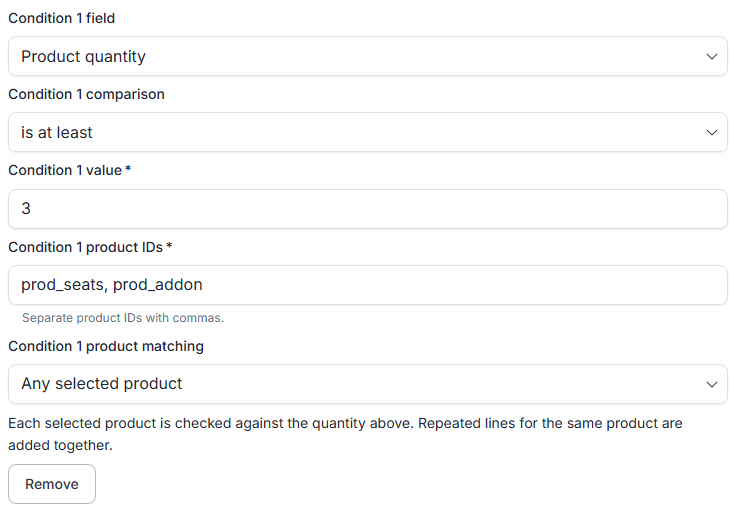
Each product is checked on its own. With a limit of three, a payment with three seats and two add-ons passes Any selected product. It does not pass Every selected product. Two lines for the same product are added together. A missing product does not match, even when the comparison is “is less than.”
Stripe invoice and Checkout lines supply the quantities. The app reads more pages when needed, up to 1,000 lines. Missing quantities, credit lines and prorated lines stop the quantity rule for review. A payment that does not use this rule can still be recorded.
For an offline payment, enter Product ID and Product quantity in Create manual transaction. That form records one product. Leave quantity blank when no quantity rule applies. Do not guess a missing quantity.